Review emails after an order
Last updated
A few days after an order is completed, Formgong emails the buyer a link to review what they bought, and one reminder if they have not. Reviews sent from that email are marked “Verified buyer”. You set it up under Emails in the dashboard.
- An order is completedYour store sends it to Formgong.
- 7 days later, at 10:00In your store's time zone. Both can be changed.
- The review email goes outOne page for the whole order. If there is no review, one reminder 5 days later.
- The buyer reviewsEach review is marked “Verified buyer”.
See it live: Glyna is a demo WooCommerce store connected to Formgong. Place a demo order there (nothing is charged): the plugin sends the completed order to Formgong, and the review email arrives after the store's delay, with one reminder if you do not review.
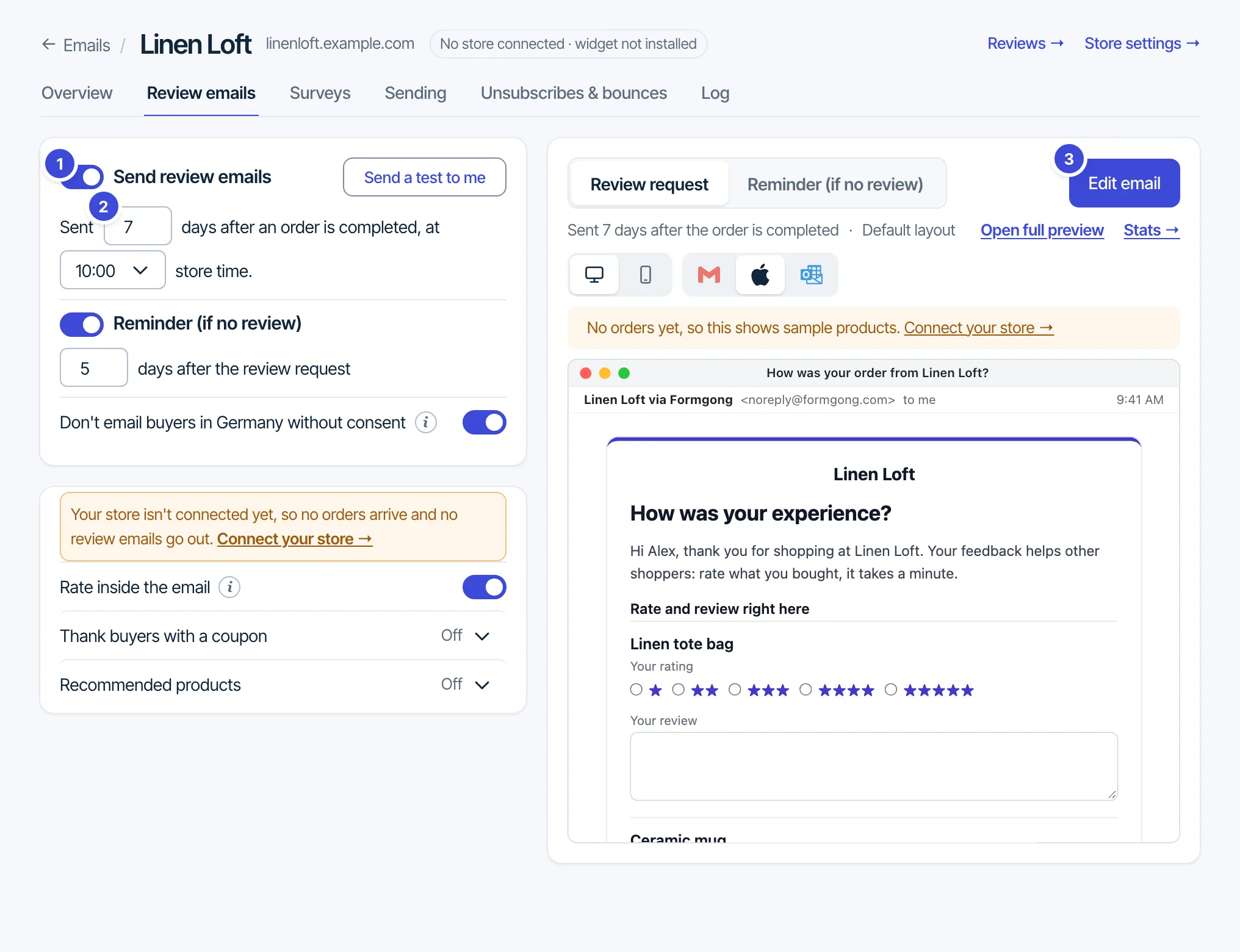
Review emails belong to a review site. Open Emails, pick the store and you get six tabs: Overview, Review emails, Surveys, Sending, Unsubscribes & bounces and Log. Turn the emails on with Send review emails on the Review emails tab.
How an order reaches Formgong
- WooCommerce: the Formgong WordPress plugin, version 1.3.1 or later, sends each completed order. Refunds and cancellations stop a waiting email. See WooCommerce.
- Any other shop: your shop, or Zapier, Make or n8n, sends each completed order to
POST https://formgong.com/api/orderswith a store token. - Past orders: upload a CSV to email buyers from the last 90 days (up to 3 files a day).
The request format, the CSV columns and the store token are in Store connection. Shopify and Wix orders cannot be sent directly yet; use Zapier or the API for them.
When the emails go out
- Days after the order is completed: 7 by default, 0 to 60. With 0 the email goes out as soon as the order arrives.
- Send at (store time): the hour of the day in your store's time zone, 10:00 by default, or as soon as the delay ends. The time zone comes with the orders from WooCommerce; until the first order, or when your shop sends none, it is UTC.
- Reminder (if no review): one reminder, on by default, 5 days after the first email (1 to 30). It asks only about products not reviewed yet, and is skipped when every product has a review.
Formgong checks for due emails every 10 minutes. Review emails share a daily limit with your form auto-replies: on Free, 20 a day per site and 50 per account; on Formgong Pro, 1,000 per site and 2,000 per account. An email over the limit waits a day, for up to 3 days.
Help first, then ask for a review
A buyer who is still waiting for your answer is not asked for a review. Before each review email and reminder, Formgong checks whether that buyer's email has an open help-chat ticket on any of your bots, or wrote to any of your forms in the last 14 days and you have not yet marked the message Replied or Closed. If so, the email waits a day and is checked again. Once you answer, it goes out as usual. If the question is still open 14 days later, that buyer gets no review request for this order: a review asked for in the middle of a problem is usually one star. Dashboard → Emails shows how many buyers are waiting for your answer, and the recent orders list marks them. There is nothing to set up: it works for every store.
One review page per order
The button in the email opens one page for the whole order, with stars and a text box for each product (up to 6 products) and the name and email asked once. Products the buyer already reviewed are left out. Reviews sent from that page get the “Verified buyer” label, one per product. The link works for 90 days.
Design the email
On the Review emails tab, the first email and the reminder each have Edit email, which opens a drag-and-drop editor. Blocks:
- Structure: 1, 2, 3 or 4 columns, including 1/3 + 2/3 splits.
- Content: Section, Text, Image, Button, Divider, Spacer, Social links, Coupon note.
- Review email: Ordered products, Logo header, Unsubscribe footer, Recommended products, Survey.
- Ready layouts to start from: Default, Minimal, Spotlight.
Each email can have a version for each of Formgong's 12 languages. Buyers in other languages get the default language. Every email ends with the unsubscribe footer, and it cannot be removed. Preview real email shows the email with one of your last 10 orders, and nothing is sent; Reset to default brings back the standard layout.
Rating inside the email
With Rate inside the email on (the default), the email carries a small rating form. It shows in Apple Mail, Yahoo, AOL and Thunderbird. Gmail shows its own interactive version (AMP for Email) instead: the buyer picks the stars, writes the review and sends it without leaving Gmail. Outlook does not show forms, so its readers get five star links, each opening the order page with that rating already picked, and so does Gmail when it shows the plain version (for example in an email older than 30 days). Either way the review is verified.
Coupons for verified reviews
Under Thank buyers with a coupon, turn on Send a coupon for every verified review. It needs a WooCommerce store connected through the plugin, version 1.3.3 or later, because the store creates the coupon. Set the discount type (percentage or a fixed amount in your store currency), the amount (10 by default), when it expires (30 days by default, 1 to 365) and an optional minimum spend.
The buyer gets one single-use coupon per order, tied to their email address, whatever rating they give. The review email says so: “As a thank-you, you'll get a coupon for your review, whatever your rating.” Each of those reviews shows “Received a store coupon for reviewing” on your site and is marked as an incentivised review in the Google feed, as the US FTC rules require.
Recommended products and consent
Turn on Show product recommendations in review emails, then drag the Recommended products block into the email. The cards can show products related to the order, best sellers, top rated products or new arrivals (4 by default, up to 12). The products come from your WooCommerce catalog, which the plugin (1.3.4 or later) sends once a day and when a product changes.
Product cards are marketing, so Formgong follows a consent rule for each buyer:
- a buyer who said no to marketing gets no cards;
- a buyer who said yes gets them;
- when the store sent no answer, the buyer gets cards only if their billing country is known and is outside the EU, Iceland, Liechtenstein, Norway, the UK and Switzerland.
The plugin sends a yes from the Mailchimp for WooCommerce checkbox or the formgong_review_marketing_consent filter. The block also needs your postal address, set under Settings → Sites → your site → Store address, because a US marketing email must show one (CAN-SPAM). WooCommerce stores get it from WooCommerce → Settings → General. Without an address the block stays out of real emails.
Surveys
The Surveys tab holds short surveys for buyers. Start from Blank survey, How did you find us?, Post-purchase satisfaction (NPS) or Product fit. Each survey has 1 to 10 questions: One choice, Several choices, Rating scale, NPS 0 to 10, Yes or no, or Short text. To send one, drag the Survey block into the email. Where the mail app allows it, the full survey is inside the email; elsewhere each answer to the first question is a link. Answers are tied to the order, one response per order email, and the link works for 90 days. Results show responses, averages and the NPS split, and download as CSV.
Buyers in Germany
Germany's Federal Court of Justice held that a feedback email after a purchase is advertising (BGH, VI ZR 225/17), so it needs the buyer's consent. With Don't email buyers in Germany without consent on, an order billed to Germany without a recorded yes gets no email. It is counted on the Overview tab, and the buyer's address is not kept. New stores start with the switch on. It is on the Review emails tab.
Who sends the email
On the Sending tab, pick one:
- Formgong (default): the email comes from “Your store” (our address, your store's name), and replies go to your store's reply-to address.
- Klaviyo: Formgong sends nothing itself. It records an event in your Klaviyo account (Formgong Review Request, Formgong Review Reminder, Formgong Review Coupon, Formgong Review Edit Link), and your Klaviyo flow sends the email. The private key needs Events: write and Accounts: read.
- SendGrid, Mailgun, Postmark or Brevo: the same email, sent through your own account from your own verified address.
If your provider fails, Formgong retries every 2 hours for up to 3 days. It never falls back to sending through Formgong.
Unsubscribes and bounces
Every review email has a “No more review emails from your store” link. One click on Stop review emails stops all review emails from that store to that address. The Unsubscribes & bounces tab lists addresses from the last 30 days of orders that will not get email: hard bounces, spam complaints and people who unsubscribed from all Formgong emails. You can remove a hard bounce from the list.
Log, overview and funnel
- Overview counts the last 30 days: review emails and reminders sent, order pages opened, reviews from emails, survey answers, bounces, spam complaints, unsubscribes and failed sends. “Opened” means the order page was loaded, counted once per order; there is no tracking pixel.
- Funnel (all time): emails sent, reminders sent, review page opened, reviews sent, and how many were sent from inside the email.
- Log: the last 100 emails with time, kind, masked address, provider, status and details. Entries are kept 30 days.
Test email
Send a test to me in the editor sends the email to your own account address, with “[Test]” in the subject. Your address must be confirmed, and you can send 5 tests an hour. The editor's test always goes through Formgong; the test on the Sending tab uses the provider you picked (for Klaviyo, a test event).
Questions: support@formgong.com.