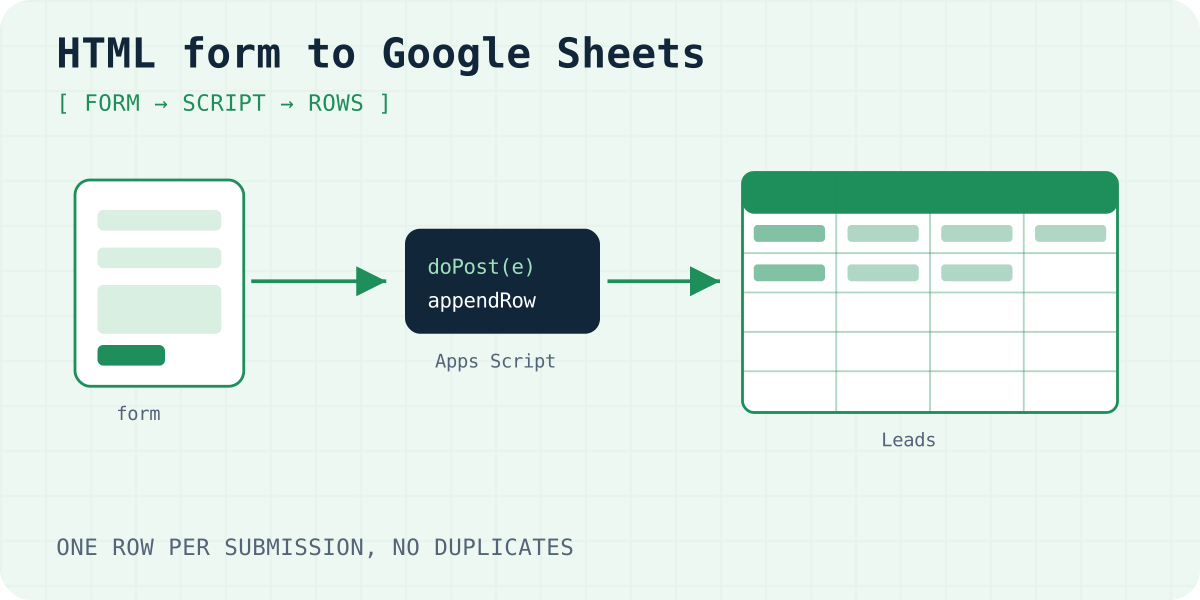
Two methods at a glance
- Method 1: form → Apps Script. Your form posts straight to a small script in your sheet. Nothing else is involved. You get rows, but no email alert, no spam filter beyond what you write, and the form needs JavaScript.
- Method 2: form → form backend → Apps Script. The form posts to a form backend. The backend filters spam, emails you, and then sends each real entry to your script with a webhook.
Start with Method 1 if you only need a list. Choose Method 2 when someone needs to answer the leads quickly.
Method 1: post the form to Apps Script
- Create a sheet, name a tab
Leads, and put column names in row 1: Date, Name, Email, Message. - Open Extensions → Apps Script, delete the sample code and paste the script below.
- Click Deploy → New deployment, choose Web app, set Execute as to Me and Who has access to Anyone.
- Approve the permissions and copy the web app URL. It ends in
/exec. - Put that URL in the form code from the next box and publish your page.
The script skips posts with a filled honeypot field. It also takes a lock, so two posts at the same moment do not overwrite each other. The clean() step stops a value such as =IMPORTXML(…) from running as a formula in your sheet.
// In your sheet: Extensions > Apps Script. Row 1 of the "Leads" tab holds the column names.
function doPost(e) {
  const p = e.parameter;
  if (p.botcheck) return json({ ok: true }); // honeypot: bots fill it, people never see it
  const lock = LockService.getScriptLock();
  lock.waitLock(20000); // one write at a time, so rows do not overwrite each other
  try {
    SpreadsheetApp.getActive().getSheetByName("Leads").appendRow([
      new Date(), clean(p.name), clean(p.email), clean(p.message),
    ]);
  } finally {
    lock.releaseLock();
  }
  return json({ ok: true });
}

// A value that starts with = + - or @ would run as a formula. The quote keeps it as text.
function clean(value) {
  const text = String(value || "");
  return /^[=+\-@]/.test(text) ? "'" + text : text;
}

function json(data) {
  return ContentService.createTextOutput(JSON.stringify(data))
    .setMimeType(ContentService.MimeType.JSON);
}
The HTML form that posts to the web app
<form id="lead-form">
  <label>Name <input type="text" name="name" required autocomplete="name"></label>
  <label>Email <input type="email" name="email" required autocomplete="email"></label>
  <label>Message <textarea name="message" required></textarea></label>
  <div aria-hidden="true" style="position:absolute;inset-inline-start:0;top:0;width:1px;height:1px;overflow:hidden;clip-path:inset(50%)">
    <input type="text" name="botcheck" tabindex="-1" autocomplete="off">
  </div>
  <button type="submit">Send</button>
  <p id="lead-status" role="status"></p>
</form>
<script>
  const form = document.getElementById("lead-form");
  const status = document.getElementById("lead-status");
  form.addEventListener("submit", async (event) => {
    event.preventDefault();
    status.textContent = "Sending…";
    try {
      // A form-encoded body keeps this a simple request, so the browser sends no preflight.
      const response = await fetch("https://script.google.com/macros/s/YOUR_DEPLOYMENT_ID/exec", {
        method: "POST",
        body: new URLSearchParams(new FormData(form)),
      });
      if (!response.ok) throw new Error(String(response.status));
      form.reset();
      status.textContent = "Thanks, your message is in.";
    } catch {
      status.textContent = "Sending failed. Please try again or email us.";
    }
  });
</script>
What Method 1 does not do
- No alert. Rows appear quietly. You must open the sheet to see a new lead.
- Little spam protection. The URL is public, so anyone who finds it can post to it. A honeypot stops simple bots only.
- JavaScript required. The form uses
fetch, because a plain form post would leave the visitor on a Google page. - Edits need a new version. After you change the script, open Manage deployments, edit the deployment and pick a new version. The URL stays the same.
- Quotas. Google limits Apps Script per user, for example 30 executions at the same time and 6 minutes per run (as of 05.10.2026). A small site will not notice.
Method 2: a form backend webhook into your sheet
Here the form is a normal HTML form that posts to Formgong. It works without JavaScript and shows a thank-you page. Formgong filters spam, emails you or sends the lead to Telegram, and then posts JSON to your script. The Free plan includes one webhook per form.
- Create the sheet and the
Leadstab with columns: ID, Date, Name, Email, Message. - Paste the webhook script below, change
SECRET, and deploy it as a web app like in Method 1. - In Formgong, open the form settings and add a webhook. Use the web app URL plus
?key=and your secret. - Click the webhook test in the dashboard, then send a real entry from your site.
Apps Script for the Formgong webhook
// Webhook URL in Formgong: the web app URL + "?key=" + the same SECRET.
// Apps Script cannot read request headers, so the key in the URL replaces the signature check.
const SECRET = "change-me";

function doPost(e) {
  if (e.parameter.key !== SECRET) return reply();
  const body = JSON.parse(e.postData.contents);
  if (body.event !== "submission.created") return reply(); // the dashboard test sends "webhook.test"
  const lock = LockService.getScriptLock();
  lock.waitLock(20000);
  try {
    const sheet = SpreadsheetApp.getActive().getSheetByName("Leads");
    const id = body.submission.id;
    // A retry carries the same id: skip it if the row is already there.
    if (!sheet.getRange("A:A").createTextFinder(id).matchEntireCell(true).findNext()) {
      const f = body.submission.fields;
      sheet.appendRow([id, body.submission.created_at, clean(f.name), clean(f.email), clean(f.message)]);
    }
  } finally {
    lock.releaseLock();
  }
  return reply();
}

function clean(value) {
  const text = String(value || "");
  return /^[=+\-@]/.test(text) ? "'" + text : text;
}

// HtmlService, not ContentService: ContentService answers with a redirect,
// and a webhook sender that does not follow redirects counts that as a failure.
function reply() {
  return HtmlService.createHtmlOutput("ok");
}
The redirect trap that creates duplicate rows
Google documents that a script answering with ContentService replies with a redirect to a one-time address on script.googleusercontent.com. A browser follows it, so Method 1 is fine. A webhook sender that does not follow redirects sees a failure instead, even though the row was already written.
Formgong does not follow redirects for webhooks, for security. It treats the redirect as a failed delivery and tries again later, up to five attempts. Each attempt runs your script, so you can get the same lead five times. Two things in the webhook script prevent this:
- It answers with
HtmlService. Developers report that this output comes back directly, without the redirect. - It writes the submission ID into column A and skips IDs that are already there. Even if a retry happens, you get one row.
After setup, open the webhook log in the dashboard. A real entry should show status 200 on the first attempt.
No-code route: Make, n8n or Zapier
If you would rather not touch Apps Script, point the webhook at an automation tool and add a Google Sheets step there. Our recipes cover Make, self-hosted n8n and Zapier. Zapier's webhook trigger needs a paid Zapier plan, so Make or n8n are the free options.
The webhook docs describe the JSON body. For a receiver you control, use the raw-body HMAC verification examples for Node, Python, PHP or Cloudflare Workers.
Frequently asked questions
Can an HTML form write to Google Sheets without code?
Not directly. You need either a small Apps Script or a tool in between, such as a form backend with Make or n8n. The Apps Script in this guide is about 20 lines to copy.
Why does my form open a Google page after submit?
The form posts straight to the web app, so the browser shows its answer. Send the form with fetch, as in Method 1, or use a form backend that redirects to your own thank-you page.
Why do I get duplicate rows from a webhook?
The sender saw a failure and tried again. With Apps Script, ContentService answers with a redirect that some senders treat as a failure. Answer with HtmlService and skip submission IDs that are already in the sheet.
Is it safe to set the web app access to Anyone?
Anyone with the URL can post to it, but nobody can read your sheet through it. Keep the script small, check a secret key for webhooks, and never return sheet data in the reply.
Sources and documentation
Official references for this guide: Apps Script: web apps, Apps Script: Content service redirects, Apps Script: quotas, Apps Script: Lock service, Stack Overflow: HtmlService avoids the redirect, Zapier pricing. Formgong webhooks, where data is stored.
Read this article as Markdown