How the limit works
Webflow's help centre describes the limit like this (as of 05.10.2026):
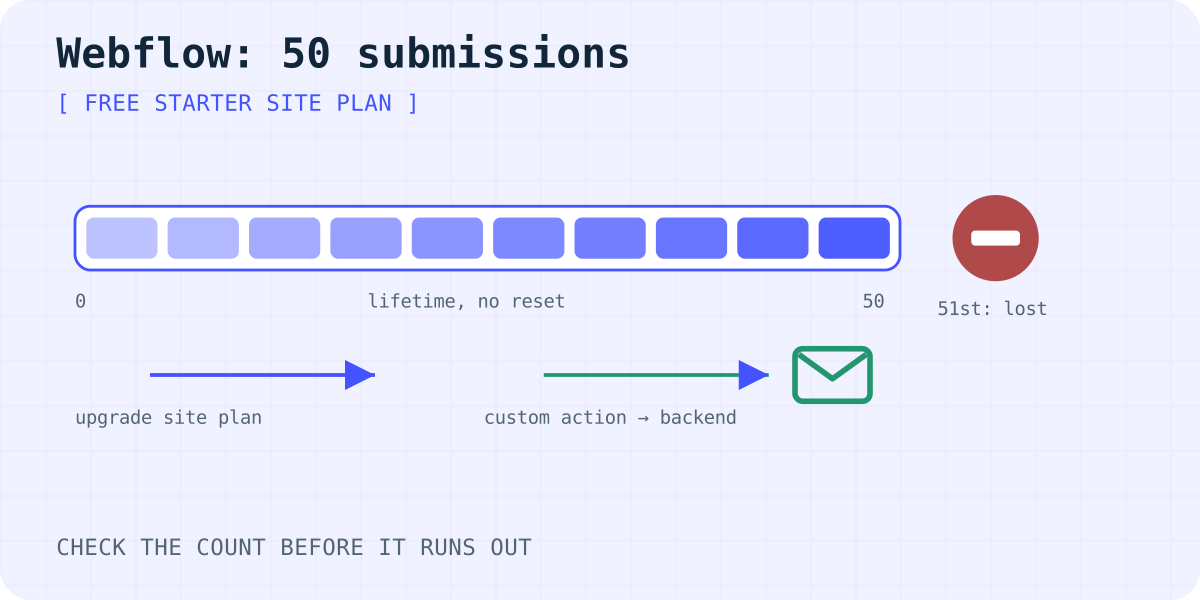
- A site on the free Starter Site plan can collect 50 form submissions in total. It is a lifetime count, not a monthly one, so it never resets.
- After 50, Webflow says new submissions are no longer collected. To keep collecting them, it points you to a Site plan upgrade.
- Every paid Site plan has unlimited form submissions.
- You can see the count in Site settings → General → Overview.
Tests count too. If you sent a dozen test messages while building, they used part of the 50.
Your options when you reach 50
- Upgrade the site. Basic is the cheapest paid Site plan: $15 a month billed yearly or $25 billed monthly (as of 05.10.2026). Submissions become unlimited and your form keeps working as it is.
- Use a custom action. The form posts to an outside form service instead of Webflow. Webflow then does not count, store or email those submissions. The hidden fields go in a Code Embed. Code Embed needs a paid Workspace (Core, Growth, Agency or Freelancer) or an active Site plan.
- Link to a hosted form. On a fully free setup, a button can open a form hosted elsewhere, such as Google Forms. It works, but visitors leave your design.
If the site is exported and hosted elsewhere, Webflow does not process its forms at all. A custom action is the only way to get those submissions.
Set up a custom action
- Give each field a clear Name in its settings. That name is the label you see in the form service.
- Select the form block and open its settings. Under Send to, remove Webflow and Email notifications. Webflow does not allow a custom action next to them.
- Add Custom action, enter
https://formgong.com/submit, choose the method POST and save. - Drop a Code Embed element inside the form and paste the hidden fields below. Replace the key with the one from your Formgong dashboard and set your own thank-you page.
- Publish and send a test from the live site, not from the Designer.
Formgong's Free plan includes 300 submissions a month, email and Telegram alerts, and a spam filter. The Webflow setup page has the full form and more detail.
<!-- Code Embed element placed inside the Webflow form block -->
<input type="hidden" name="access_key" value="fk_your_access_key">
<input type="hidden" name="_lang" value="en">
<input type="hidden" name="_redirect" value="https://www.example.com/thank-you">
<input type="hidden" name="_subject" value="New Webflow form submission">
<div aria-hidden="true" style="position:absolute;inset-inline-start:0;top:0;width:1px;height:1px;overflow:hidden;clip-path:inset(50%)">
  <input type="text" name="botcheck" tabindex="-1" autocomplete="off">
</div>
What changes with a custom action
- No Webflow success message. The visitor goes to the page in
_redirect. Build a thank-you page in Webflow and use its full URL. - Nothing in Webflow. Submissions no longer appear in the Webflow form list. They live in the form service's inbox.
- Webflow reCAPTCHA is not checked. Webflow's reCAPTCHA is meant for its own form processing, and Formgong does not verify reCAPTCHA. Rely on the honeypot field and Formgong's spam filter, or turn on Cloudflare Turnstile in the Formgong form settings.
Webflow form not sending email? Check these first
If the form shows its success message but no email arrives, the limit is only one possible cause:
- The 50 submissions are used up. Check the count in Site settings.
- The recipient is not a Workspace member. On the free plan, notifications go to up to five recipients, and they must be members of the Workspace.
- A role address. Webflow notes that addresses such as info@ or sales@ can hurt delivery. Check the spam folder, or try a personal address.
- A custom action is set. Then Webflow sends no notifications at all; the outside service does.
- reCAPTCHA is on but the form has no reCAPTCHA element. Webflow says such forms fail to submit.
The general checklist is in why a contact form is not sending email.
Frequently asked questions
Does the Webflow 50 submission limit reset every month?
No. On the free Starter Site plan it is a total for the life of the site, as Webflow describes it on 05.10.2026. Only a paid Site plan removes it.
What happens to submissions after the limit?
Webflow says new submissions are no longer collected. Its help page does not mention any way to recover them later, so fix the form before visitors keep writing.
Do paid Webflow plans have a form limit?
No. Webflow lists unlimited form submissions on all paid Site plans.
Can I use a custom action on the free plan?
You can set the action, but the hidden fields a form service needs go in a Code Embed. Code Embed needs a paid Workspace or an active Site plan.
Sources and documentation
Official references for this guide: Webflow: Form submissions, Webflow: Forms overview, Webflow: Custom code embed, Webflow pricing, Webflow: Site plan changes, Webflow: Exported sites, Webflow: Add a reCAPTCHA element. Formgong for Webflow, where data is stored.
Read this article as Markdown