How it works
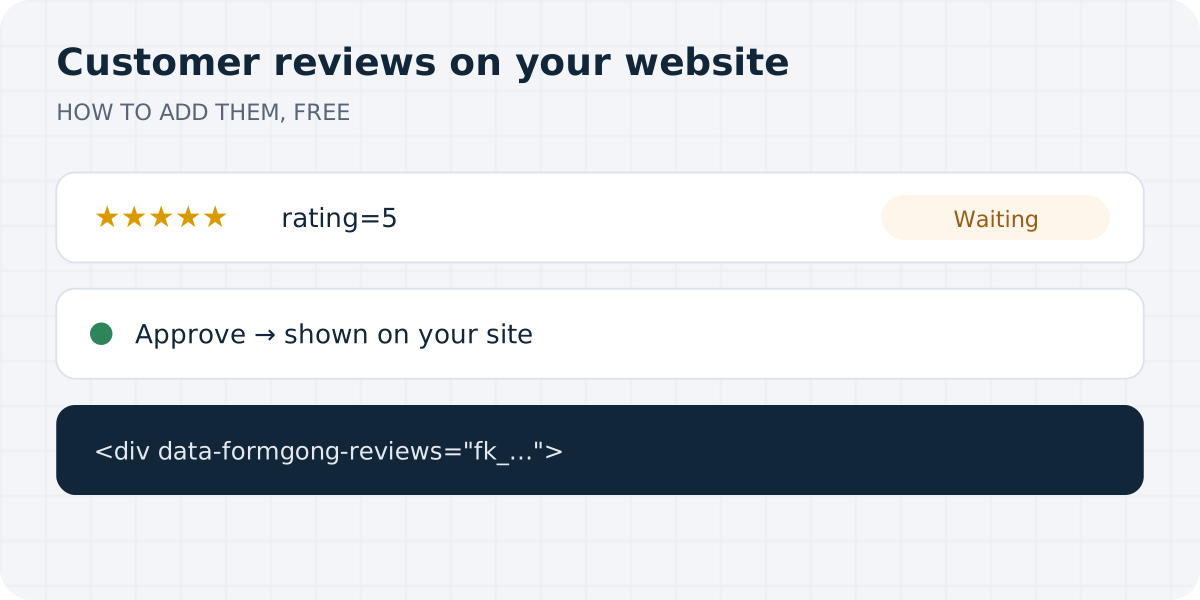
If you already use Formgong for your contact form, reviews come through the same pipe. A customer fills in a short form with a star rating, it arrives in your inbox like any other message, and you decide whether it goes on your site. Nothing shows up publicly until you press Approve.
Setting it up takes four steps and works on the free plan. Each rating counts as one of your monthly submissions; showing the reviews on your site costs nothing extra.
Step 1: Add a rating form
Put this form wherever you ask for feedback: your thank-you page, a link in a follow-up email, or a page of its own. Replace fk_your_access_key with your form's key.
Formgong looks at one field to decide that a message is a review: rating, a whole number from 1 to 5. Radio buttons are the easiest way to collect it. The name and the review text are optional.
The hidden botcheck field catches bots. A submission that fills it in goes to spam, and spam never turns into a review.
<form action="https://formgong.com/submit" method="POST">
  <input type="hidden" name="access_key" value="fk_your_access_key">
  <input type="hidden" name="_lang" value="en">
  <fieldset>
    <legend>How would you rate us?</legend>
    <label><input type="radio" name="rating" value="5" required> ★★★★★</label>
    <label><input type="radio" name="rating" value="4"> ★★★★</label>
    <label><input type="radio" name="rating" value="3"> ★★★</label>
    <label><input type="radio" name="rating" value="2"> ★★</label>
    <label><input type="radio" name="rating" value="1"> ★</label>
  </fieldset>
  <label>Your name <input name="name" maxlength="80"></label>
  <label>Email (optional, for our reply) <input type="email" name="email" maxlength="254"></label>
  <label>Your review <textarea name="testimonial" maxlength="2000"></textarea></label>
  <div aria-hidden="true" style="position:absolute;inset-inline-start:0;top:0;width:1px;height:1px;overflow:hidden;clip-path:inset(50%)">
    <input type="text" name="botcheck" tabindex="-1" autocomplete="off">
  </div>
  <button type="submit">Send review</button>
</form>
Step 2: Turn on reviews for that form
Open the dashboard and click Reviews in the menu. Under Collect reviews with, pick your form and press Turn on. The form then appears at the top of the page, together with the code you will paste into your site in step 4.
Only messages that arrive after you switch it on become reviews. Older submissions stay as they are.
Step 3: Approve the reviews you want to show
Each new review lands in Reviews as Waiting, and the menu item shows how many are waiting. You also get every review in Telegram or by email, like any submission, so you know when to look.
Press Approve and the review appears on your site within a minute. Press Hide and it stays private. You can change your mind later in either direction. The filters at the top switch between waiting, approved and hidden reviews, or show one form at a time.
Reply to a review, in public or in private
Every review has a Public reply · Private reply link under it. A public reply shows under the review on your site, marked “Reply from the owner”. If the reviewer left an email address, they also get your reply by email, in the language they wrote in. If you'd rather they didn't, untick Email the reviewer when I reply publicly in the form's card.
A private reply never appears on your site. Where it goes is set per form, under Private replies: to the reviewer's email, to your webhooks as a signed review.reply.private event (useful when your CRM or helpdesk should send it), or nowhere, kept as a note. Each private reply stays under the review with its status: sent, saved, failed, or held back by the daily limit. One reviewer gets at most 3 reply emails a day.
If the form has a Reply-To address for auto-replies, the reviewer can answer your email and the answer goes there. Without one, the email doesn't invite an answer. The reviewer's address is used only for these replies: it never shows in the widget or the JSON, and it's deleted when the form's retention period runs out.
Step 4: Put the reviews on your site
Paste this where the reviews should go, with your key instead of fk_your_access_key:
<div data-formgong-reviews="fk_your_access_key" data-limit="6" data-title="What our customers say"></div>
<script src="https://formgong.com/reviews.js" defer></script>
How the widget looks, and its two settings
data-limit sets how many reviews appear, from 1 to 50 (6 if you leave it out). The average and the count above them still include every approved review. data-title adds a heading, and the heading only shows once you have at least one approved review.
The widget uses your page's font and text colour but draws itself inside a shadow DOM, so your site's CSS can't break it. Until you approve the first review it shows nothing, so a new page never has an empty box on it. The script is about 3.3 KB (1.4 KB compressed), sets no cookies and adds a small Formgong link under the reviews.
If your site sends a Content-Security-Policy header, add https://formgong.com to script-src and connect-src, or the browser will block the widget.
You can also add a “Helpful” button under each review: tick Show a “Helpful” button under each review in the form's card. Each visitor counts once per review, there is no dislike button, and votes never change the order of reviews, so nobody can bury a critical one.
Want your own design? Use the JSON
Everything the widget shows is also at https://formgong.com/reviews/fk_your_access_key.json. Any site can read it, it updates within a minute of an approval, and it answers 404 if the key is wrong or reviews are off for that form. You get the average, the number of approved reviews and the newest 50:
{
  "average": 4.5,
  "count": 2,
  "reviews": [
    { "rating": 5, "author": "Anna", "body": "Answered within an hour.", "date": "2026-10-09",
      "reply": { "body": "Thank you, Anna!", "date": "2026-10-09" } },
    { "rating": 4, "author": null, "body": "Good service.", "date": "2026-10-08", "reply": null }
  ]
}
Which fields Formgong reads
rating has to be a whole number from 1 to 5. If someone sends 4.5, 0 or the word “five”, you still get the message; it just doesn't become a review.
For the author's name, Formgong takes the first non-empty field out of name, full_name and author, up to 80 characters. Without a name, the review shows without one. For the text, it takes the first non-empty field out of testimonial, review, comment, feedback and message, up to 2,000 characters.
What gets kept, and for how long
An approved review stays on your site until you hide it, even after the original message is deleted under your retention setting. Waiting and hidden reviews are deleted when the form's retention period runs out. If you delete a submission, its review goes with it; if you delete the form, all of its reviews go. Reviews are stored in the EU, next to your submissions.
What it doesn't do
It won't get you stars in Google search. Google doesn't show review stars for reviews a business collects about itself on its own site (its LocalBusiness and Organization pages), so these reviews are for your visitors, not for search results.
It doesn't import reviews from Google or Facebook; only reviews sent through your Formgong form appear. It shows text and stars, not photos or video.
One form holds one set of reviews, so if you want separate reviews for different products, create a form for each. The rating box under every article on this blog is a Formgong form with reviews turned on.
Frequently asked questions
Is the review widget free?
Yes, on every plan including Free. Each rating counts as one submission towards your monthly limit; the widget and the JSON feed cost nothing.
Can a review appear on my site without my approval?
No. Every review waits in the Reviews section of your dashboard until you approve it, and you can hide it again at any time.
Does it work on Lovable, Bolt, Astro or plain HTML sites?
Yes. The form is plain HTML that posts to Formgong, and the widget is one script tag, so it works on any host.
Will the stars show in Google search?
Not for reviews of your own business. Google doesn't show review stars for LocalBusiness or Organization pages that collect reviews about themselves.
Can I style the reviews myself?
Yes. Read the public JSON and render it however you like, or let the widget pick up your page's font and colours.
Sources and documentation
Official references for this guide: Google: Review snippet structured data, MDN: Using shadow DOM, MDN: Content-Security-Policy. HTML contact form, where data is stored.