Three ways to get WordPress form entries in Telegram
- A Telegram plugin with your own bot. You create a bot with BotFather, find your chat ID and paste both into a plugin. It works, but you maintain the plugin and the bot token sits in WordPress.
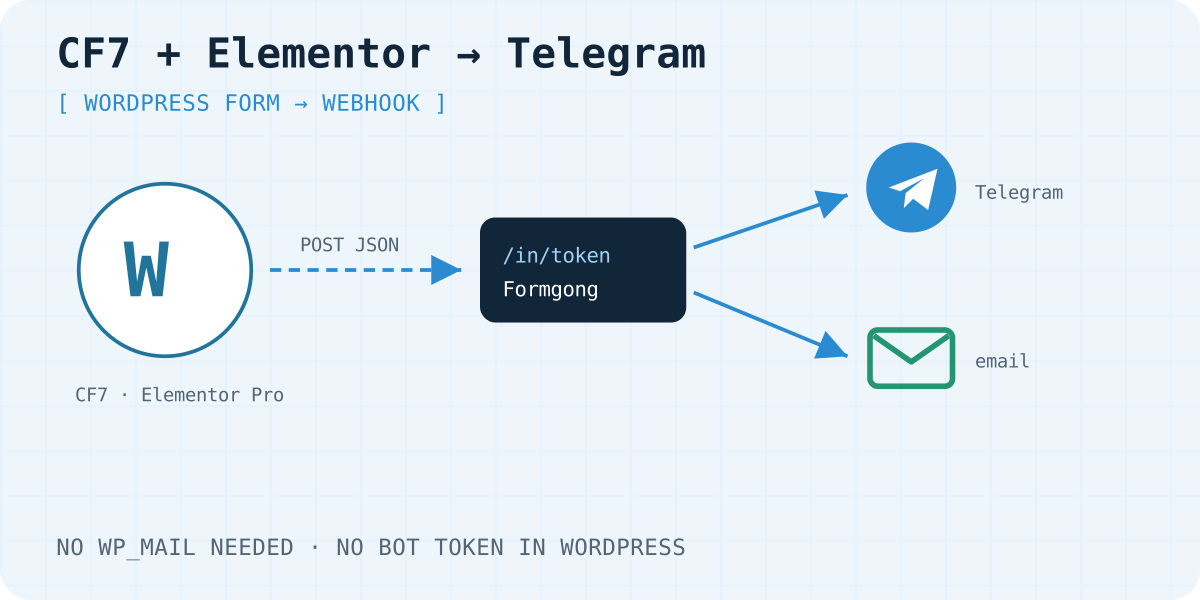
- A webhook to a form service. Your form stays as it is. Each entry is posted to a service that sends it to Telegram and email. This guide uses Formgong.
- Replace the form with an HTML form. Paste a plain HTML form into a Custom HTML block. No form plugin at all. The WordPress setup page covers this route. The full walkthrough is WordPress contact form without a plugin.
Prefer your own bot? Our guide to a Telegram bot for a contact form shows the code.
Step 1: create a platform URL in Formgong
- Create a form in Formgong and connect Telegram in its settings. You open a link to the Formgong bot and press Start. For a group, you send a connect command in the group.
- Open the form, go to Platforms and click Add platform.
- Choose Elementor for an Elementor form. Choose Other (JSON or form data) for Contact Form 7.
- Copy the URL right away. For security it is shown only once. If you lose it, create a new one.
Anyone who has this URL can send entries to your form, so keep it out of public pages and code.
Step 2a: Contact Form 7 with the CF7 to Webhook plugin
Contact Form 7 has no webhook option of its own. The free plugin CF7 to Webhook adds one. It sends each entry as JSON, with your field names as keys.
- Install and activate CF7 to Webhook from the WordPress plugin directory.
- Edit your form and open the new Webhook tab. Tick Send to Webhook and paste the Formgong URL.
- Untick Send CF7 mail as usually. Contact Form 7 only calls the webhook after its own mail succeeds. If WordPress mail is broken, the webhook would never run.
- Add
webhook:options to your form tags, as in the template below. They rename the fields in the JSON. Withnameandemail, Formgong fills the sender name and the reply address of the email it sends. A field sent as_subjectbecomes the subject. - Save the form and send a test from the live page.
Without the renames, entries still arrive, with keys such as your-email. Formgong stores them as they are, but then replying from the notification email does not go to the visitor.
<label> Your name
    [text* your-name autocomplete:name webhook:name] </label>

<label> Your email
    [email* your-email autocomplete:email webhook:email] </label>

<label> Subject
    [text* your-subject webhook:_subject] </label>

<label> Your message
    [textarea your-message webhook:message] </label>

[submit "Submit"]
What the plugin sends to Formgong
POST https://formgong.com/in/YOUR_PLATFORM_TOKEN
Content-Type: application/json; charset=UTF-8

{"name":"Alex Smith","email":"alex@example.com","_subject":"Quote request","message":"Need a quote"}
Step 2b: Elementor Pro forms
The Form widget and its Webhook action are part of Elementor Pro. The free Elementor plugin has no form widget.
- Edit the page and select the form.
- Under Actions After Submit, add Webhook.
- Open the new Webhook section, paste the Formgong URL and turn on Advanced Data.
- Give each field a clear label, because that is what you see in Telegram.
- Click Update and send a test from the live page.
You can keep Elementor's Email action next to the webhook, or remove it once the Telegram messages arrive.
Step 3: test it
Send a message you can recognise from the published page. Within a few seconds it should appear in Telegram, in your email and in the Formgong inbox.
In Formgong, the Platforms list shows the time of the last request and its status: Working, Test request received or Last request failed. If nothing arrived at all, check that the webhook is saved and the page republished. The general steps are in sending a website form to Telegram.
What to know before you rely on it
- No file uploads. Platform URLs do not accept files. CF7 to Webhook sends uploads as links to copies on your server. Leave its option to send file content instead of a link unticked.
- Spam checks run twice. Contact Form 7 and Elementor filter spam first, for example with Contact Form 7's Turnstile integration. Formgong then applies its own spam checks and block list.
- Entries count toward your plan. Leads from platforms count toward your monthly Formgong limit, like any other submission. The Free plan includes 300 a month.
- Keep the URL private. If it leaks, create a new URL in Platforms. The old one stops working at once.
Frequently asked questions
Can Contact Form 7 send to Telegram without a plugin?
No. Contact Form 7 only sends email. You need a plugin, either a Telegram plugin with your own bot or a webhook plugin such as CF7 to Webhook.
Does this work with the free version of Elementor?
No. The Form widget and its Webhook action are part of Elementor Pro. On free Elementor, paste an HTML form into an HTML widget instead.
Will I still get email if Telegram is down?
Yes. Formgong sends the email notification separately and keeps every entry in its inbox, so one channel failing does not lose the lead.
Why does the webhook not fire when WordPress mail fails?
CF7 to Webhook runs after Contact Form 7 reports that its mail was sent. Untick "Send CF7 mail as usually" so Contact Form 7 skips its own mail and the webhook runs every time.
Sources and documentation
Official references for this guide: CF7 to Webhook plugin, Contact Form 7: tag syntax, Contact Form 7: Turnstile integration, Elementor: Actions After Submit, Elementor: Form widget. Formgong for WordPress, where data is stored.
Read this article as Markdown