Start here: the form probably works
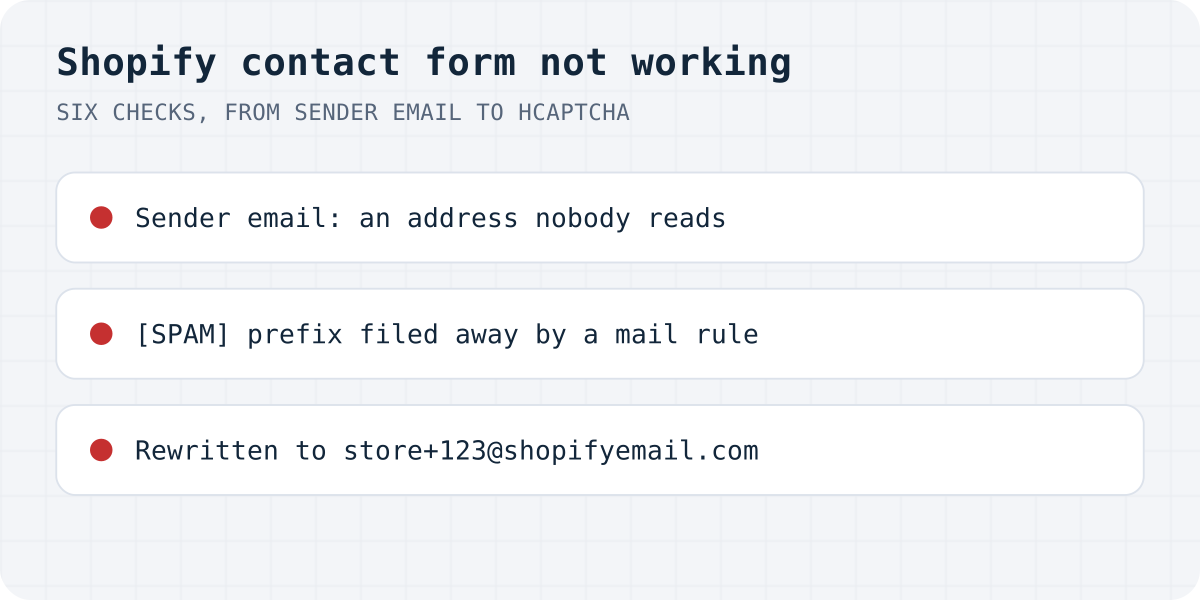
Shopify's contact form rarely fails outright. When the success message shows and no email arrives, the message was almost always sent, to a mailbox or folder you are not looking at. Find your symptom and start at the matching step:
| What you see | Likely cause | Where to fix it |
|---|---|---|
| Success message, no email anywhere | It went to the sender email, not your inbox | Settings → Notifications, step 1 |
| Some messages arrive, others never do | Flagged mail has a [SPAM] subject prefix and a rule files it | Your mailbox filters, step 2 |
| Emails come from store+123@shopifyemail.com | Your domain is not authenticated for sending | Sender email section, step 3 |
| Visitors report a captcha loop or a /challenge page | hCaptcha clashing with a captcha app or custom code | Online Store → Preferences, step 4 |
| No form on the contact page at all | The page does not use the contact template | Theme editor, step 5 |
| Works in the theme editor, silent on the live store | You tested the preview, not the store | Test again, step 6 |
Step 1: find the mailbox Shopify actually uses
Shopify sends every contact form submission to the store's sender email, and nowhere else. The help page for contact pages says it plainly: “Your contact form sends all submissions to your store's sender email address.” There is no inbox for these messages in the admin, and no setting that routes them to a second address.
Open Settings → Notifications in your Shopify admin and read the address in the Sender email section. On stores that were set up by an agency or a previous owner, this is regularly an address nobody checks any more. Your login email and your customer-facing store contact email can all be different addresses, so do not assume: read the field.
Then search that exact mailbox for a test message, spam folder included. If the sender email is wrong, change it there and save. Everything about where these messages go, and how to route them to a different address, is in our earlier guide: Shopify contact form: where do messages go?
Step 2: look for the [SPAM] subject prefix
Shopify scans the message field of the form (contact[body]) with its own spam filter. A flagged submission is not dropped: Shopify's help says “the email is sent with a [SPAM] prefix in its subject.” So the messages exist, and whether you see them depends on your mailbox.
Two things hide them in practice:
- A mail rule someone once made for the
[SPAM]prefix, filing those messages into a folder nobody opens. - Your mail provider's own spam folder, which is more likely to catch them when the sender is not authenticated (step 3).
Search the sender email mailbox for the literal text [SPAM]. If real customer messages carry the prefix, they probably tripped the filter on short or link-heavy text; the messages still arrived, and a mailbox filter on the prefix lets you review them in one place instead of losing them.
Step 3: authenticate your domain, or mail gets rewritten
If your emails arrive from an address like store+123@shopifyemail.com instead of your own domain, Shopify rewrote the sender. Its help page says that happens whenever authentication records are not configured, and warns that “Gmail and Yahoo require you to authenticate your domain and have a DMARC record” for branded senders. Unauthenticated mail is also the first candidate for the spam folder.
In Settings → Notifications, the Sender email section shows whether your domain is authenticated and walks you through it. Shopify can set the DNS records automatically for domains hosted on Cloudflare, GoDaddy or IONOS; otherwise you add the CNAME records at your DNS host yourself. The automatic setup does not create a DMARC record, so add that one manually, and only one: Shopify notes that multiple DMARC records make validation fail.
One more wording trap from the same page: some mail hosts reject senders with “no-reply” or “noreply” in the address. If your sender email starts that way, switch to a normal address.
Step 4: hCaptcha and captcha apps do not mix
Shopify protects contact forms with hCaptcha, and it is on by default for every store. Most visitors never see it: it scores them silently, and only suspicious traffic gets sent to an interactive challenge page. When visitors tell you they cannot submit the form, get stuck on a /challenge page, or loop on a captcha, the usual reason is two captchas fighting: Shopify's help says hCaptcha “isn't compatible with custom code or third-party apps that add CAPTCHA.”
The setting lives under Online Store → Preferences, in the Spam protection section, with a separate checkbox for contact and comment forms. Pick one system: either remove the captcha app or custom captcha code and keep Shopify's hCaptcha, or keep the app and untick Shopify's box for contact forms. Running both is the configuration that breaks submissions.
Step 5: the page has no real contact form
If the contact page shows text but no form, the page is not using the contact template. Shopify renders the built-in form on pages assigned the page.contact theme template, or where the theme's Contact form section was added in the editor. A page someone created by hand, with the default template, has no form to submit.
Open Online Store → Pages, click your contact page, and check the Theme template dropdown in the Online store box: it should say contact. If your theme offers a Contact form section instead, open the page in the theme editor and confirm the section is actually there and not deleted.
Step 6: test on the live store, not the editor
A surprising number of “form stopped working” reports are tests sent from the theme editor preview or with the owner's own tricks (empty message, the store's own address in the email field). Test the way a customer would:
- Open the live store in a private browser window.
- Submit a short, normal message with a real outside email address in the email field.
- Search the sender email mailbox for it: inbox, spam, and any filtered folders.
- Nothing after a few minutes? In Settings → Notifications you can send a test notification; if the test arrives and form mail does not, work back through steps 2 and 3.
If all six steps check out and messages still vanish, Shopify Community threads with this symptom usually end in a support ticket: Shopify can see whether your address landed on a delivery suppression list, which you cannot check yourself. That is worth asking their support directly.
Or take the form out of the email pipeline
Shopify's contact form only delivers by email, so a wrong sender address, a spam filter or missing authentication loses messages silently. A form backend removes that dependency: with Formgong, each submission is stored in a dashboard inbox and delivered to email and Telegram, so a filtered email is no longer a lost message. The free plan takes 1,000 submissions a month.
On Shopify it installs without an app: in the theme editor, add a Custom Liquid section to your contact page and paste the form below, with your own access key. Create a page with the handle thank-you for the redirect, remove the built-in Contact form section so visitors see one form, and send a test from the live store. The Liquid tags fill in the store language and the thank-you page automatically. More fields and options are on the HTML form setup page, and spam protection without a captcha explains what replaces Shopify's filter.
<!-- Shopify theme editor: Add section → Custom Liquid, then paste -->
<form action="https://formgong.com/submit" method="POST" class="contact-form">
  <input type="hidden" name="access_key" value="fk_your_access_key">
  <input type="hidden" name="_lang" value="{{ request.locale.iso_code }}">
  <input type="hidden" name="_redirect" value="{{ shop.url }}/pages/thank-you">
  <label>Name <input type="text" name="name" required></label>
  <label>Email <input type="email" name="email" required></label>
  <label>Message <textarea name="message" required></textarea></label>
  <div style="position:absolute;left:-9999px" aria-hidden="true">
    <input type="text" name="botcheck" tabindex="-1" autocomplete="off">
  </div>
  <button type="submit">Send</button>
</form>
Did you find your message?
Which step turned out to be yours? And if you walked all six and the mail is still missing, write to support@formgong.com with what you checked: if Shopify's form can fail in a way this page does not cover, we want to add it.
Frequently asked questions
Why is my Shopify contact form not sending emails?
It almost always is sending them, to the store's sender email set in Settings → Notifications, which is often not the mailbox you read. Check that mailbox including spam, then look for the [SPAM] subject prefix, then authenticate your domain so mail is not rewritten or filtered.
Where do I see Shopify contact form submissions?
Only in the mailbox of the sender email. Shopify keeps no copy in the admin, so a deleted or filtered email is gone. If you need an inbox, use a form backend that stores submissions.
Why do visitors get a captcha when submitting my Shopify form?
Shopify's hCaptcha is on by default and scores visitors silently; suspicious ones get an interactive challenge. Loops and stuck submissions usually mean a second captcha from an app or custom code. Keep one system: the setting is under Online Store → Preferences, Spam protection.
Why does my Shopify contact form work in the editor but not on the live store?
Usually it works in both and the test was the difference: editor previews and unusual test messages behave differently from a real visitor. Test from a private window on the live store with an outside email address, then search the sender email mailbox.
Sources and documentation
Official references for this guide: Shopify Help: Adding a contact page, Shopify Help: Setting up your store email, Shopify Help: Online store preferences (spam protection), Shopify Dev: Captcha on storefront forms. Shopify, where data is stored.