Where Shopify contact form messages go
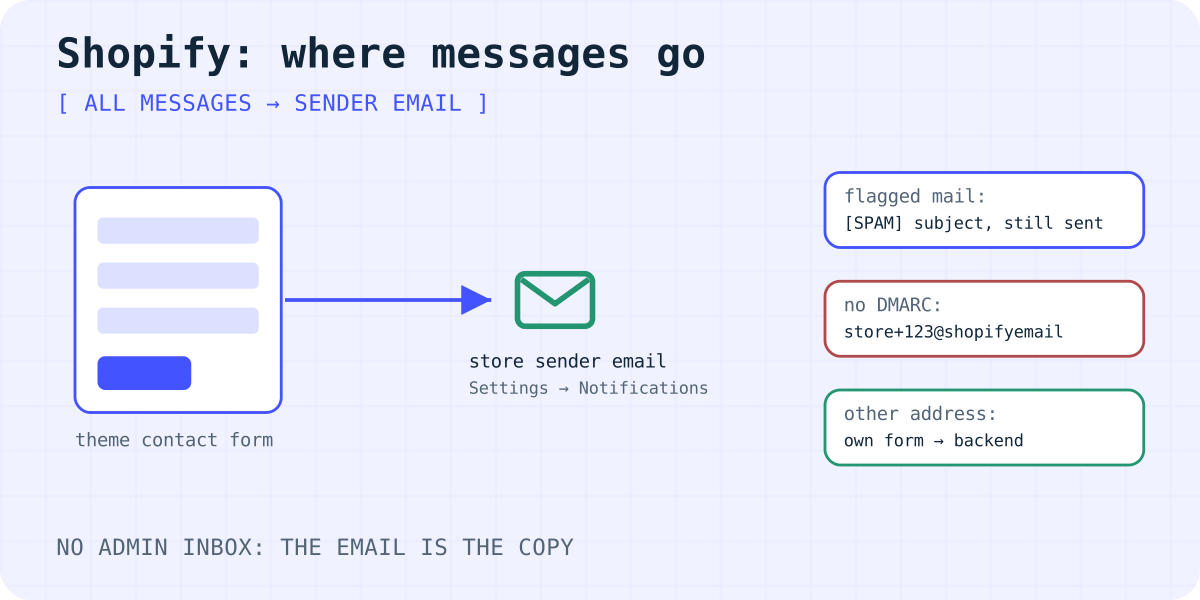
Every Shopify theme has a contact form. Shopify's help page says it sends all submissions to your store's sender email address. You set that address on the Notifications page in your Shopify admin (Settings → Notifications).
- The page describes delivery by email only. It does not mention a list of contact messages in the admin, so treat the email as your only copy.
- You can't change the subject line of these emails.
- Messages that Shopify's spam filter flags still arrive, with
[SPAM]at the start of the subject.
So if you are looking for messages, search the mailbox of the sender email, including its spam folder and any filters.
Why the contact form email does not arrive
- The sender email is not the address you check. Open Settings → Notifications and read the Sender email. Messages go there, not to your login email.
- Your domain is not authenticated. Gmail and Yahoo require domain authentication and a DMARC record for branded senders. Without them, Shopify rewrites the sender to an address like
store+123@shopifyemail.com. Authenticate the domain in the Sender email section. - The address says "noreply". Shopify warns that some mail hosts reject senders with "no-reply" or "noreply" in the name. Use a normal address.
- A filter hides
[SPAM]mail. Shopify delivers flagged messages too, but your own rule may file them away. Shopify scans the message field (contact[body]) for spam. - The page has no real contact form. The form appears on a page that uses the
page.contacttemplate, or in a theme's Contact form section.
The wider checklist is in why a contact form is not sending email.
Test the form the right way
- Open the live store in a private window, not the theme editor preview.
- Send a short message with your own email address in the email field.
- Search the sender email mailbox for your test, including spam and filtered folders.
- If the test is missing, change the sender email to another address you can read, and test again.
Send contact messages to another address
Shopify ties the contact form to the sender email. Its help page suggests an outside form, such as Wufoo or Jotform, if you want another address. A lighter option is your own HTML form in a Custom Liquid section of the theme editor, posting to a form backend.
The example posts to Formgong. On the Free plan (300 submissions a month), messages go to Telegram and to up to five email recipients per form, each confirmed by email. The Liquid tags fill in the store language and a thank-you page on your store.
- Create a free Formgong form and copy its access key.
- Create a page with the handle
thank-youfor the redirect. - In the theme editor, open your contact page, add a Custom Liquid section and paste the code.
- Replace the key, save and send a test from the live store.
More fields and options are on the HTML form setup page. To get messages on your phone, see how to send website form submissions to Telegram.
<!-- Shopify theme editor: Add section → Custom Liquid, then paste -->
<form action="https://formgong.com/submit" method="POST" class="contact-form">
  <input type="hidden" name="access_key" value="fk_your_access_key">
  <input type="hidden" name="_lang" value="{{ request.locale.iso_code }}">
  <input type="hidden" name="_redirect" value="{{ shop.url }}/pages/thank-you">
  <label>Name <input type="text" name="name" required></label>
  <label>Email <input type="email" name="email" required></label>
  <label>Order number <input type="text" name="order"></label>
  <label>Message <textarea name="message" required></textarea></label>
  <div style="position:absolute;left:-9999px" aria-hidden="true">
    <input type="text" name="botcheck" tabindex="-1" autocomplete="off">
  </div>
  <button type="submit">Send</button>
</form>
What changes with your own form
- Shopify's spam filter is skipped. The honeypot field and Formgong's spam filter take over. You can also turn on Cloudflare Turnstile in the form settings.
- Your theme styles may not apply. Add the theme's form classes or a little CSS.
- Keep one form. Remove the built-in Contact form section from the page, so visitors don't see two forms.
Frequently asked questions
Where do Shopify contact form submissions go?
To your store's sender email, set in Settings → Notifications in the Shopify admin. Shopify's help page describes no other place where they are stored.
Can I change the subject line of Shopify contact form emails?
No. Shopify says the subject line can't be changed (as of 05.10.2026). Flagged messages get a [SPAM] prefix, which you can use in a mail filter.
Why do my Shopify emails come from shopifyemail.com?
Your domain is not authenticated for sending. Shopify then rewrites the sender to store+123@shopifyemail.com. Add the CNAME records and a DMARC record to use your own address.
Can the Shopify contact form go to a different email?
Only by changing the sender email. For another address, use an outside form, as Shopify suggests, or your own HTML form that posts to a form backend.
Sources and documentation
Official references for this guide: Shopify Help: Adding a contact page, Shopify Help: Setting up your store email, Shopify Help: Customizing sections in the theme editor. Formgong HTML integration, where data is stored.
Read this article as Markdown