Where Squarespace form submissions go
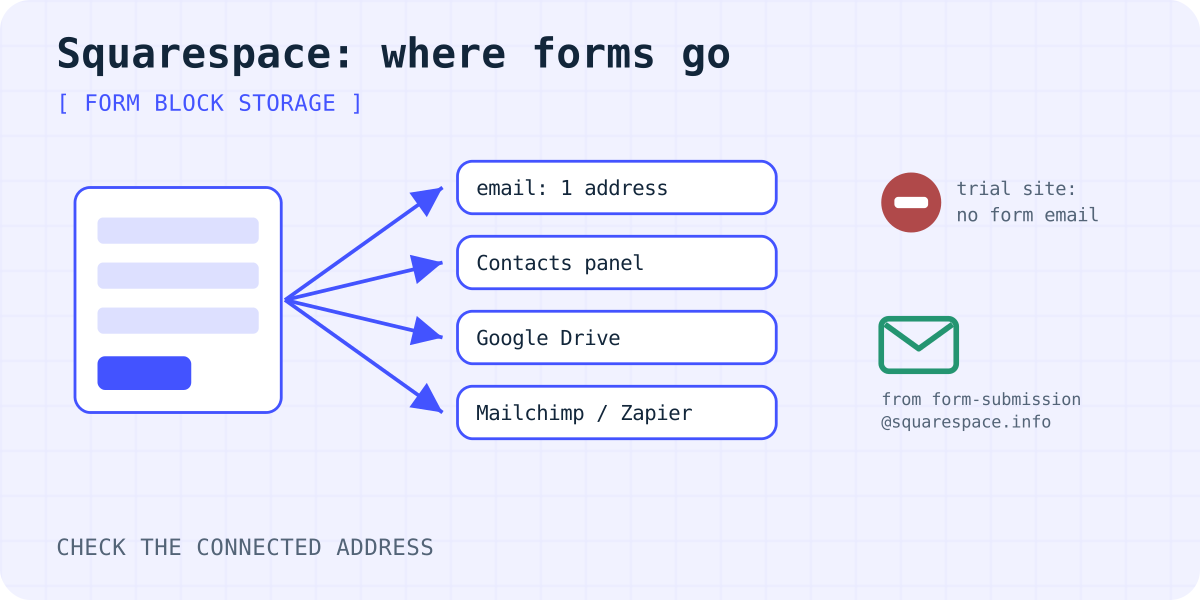
Squarespace calls the place a form sends its data storage. Every form block needs at least one. Without it, visitors can't submit the form. Depending on the form, the options are:
- An email address. By default it is the account email of the site owner or contributor who added the form. Each form can have only one email address.
- The Contacts panel. Form blocks with a required email field add each sender to Form Submitters in the Lists & Segments panel, with the full submission.
- Google Drive, as rows in a spreadsheet.
- Mailchimp or Zapier, to send the data on to other apps.
The email always comes from form-submission@squarespace.info. Its subject is "Form Submission - [form name] - [subject field]". You can't change either.
First check: is the submission saved?
Before you fix the email, find out whether the form works at all. Open Lists & Segments → Form Submitters and look for your test. This only works if the form has a required email field.
- The test is there. The form works. Only the email is missing, so go through the list below.
- The test is not there. Look for an error on the live page, or remove the block, add it again and reconnect the storage. Squarespace says this fixes most form issues.
Why the form email does not arrive
- The site is on a trial. Squarespace turns off form emails on trial sites to prevent abuse. Upgrade to a paid plan, or use Google Drive or Mailchimp storage during the trial.
- The email went to spam. Add
form-submission@squarespace.infoto a filter or safe-sender rule. Older emails came fromno-reply@squarespace.info. - The address is out of date. If you changed your account email or bought Google Workspace, the form keeps the old address. Edit the block, open Storage and change the address under Email Notifications.
- Someone else added the form. Then the email goes to that contributor's address, not yours.
- Gmail grouped the messages. All form emails come from one sender, so Gmail may stack new ones in an older thread.
Errors visitors may see
- "Form not fully sent. Error communicating with X of Y storage services." One connected storage is failing. Disconnect and reconnect it. If that does not help, remove the block and add it again.
- "Unknown error, please try again later." The visitor sent several forms in a short time. Squarespace blocks this to stop spam; a later try works.
- "Email address not valid." The address does not look like user@domain.com, or it is longer than 256 characters.
For problems that are not specific to Squarespace, see why a contact form is not sending email.
Send the form somewhere else with a Code Block
If the built-in email is not enough, you can place your own HTML form in a Code Block. Squarespace supports plain HTML and CSS in Code Blocks on all plans. JavaScript and iframes need Core, Plus, Advanced, Business, Commerce Basic or Commerce Advanced.
The form below is plain HTML, so it needs no JavaScript. It posts to Formgong, which sends each submission to email and Telegram. The Free plan includes 300 submissions a month and up to five email recipients per form, each confirmed by email.
- Create a free Formgong form and copy its access key.
- Add a Code Block, set the type to HTML and paste the code.
- Replace the key, and set
_redirectto a thank-you page on the same site. - Save, log out and send a test from the live site.
More options are on the HTML form setup page.
<!-- Squarespace Code Block, type HTML. Works without JavaScript. -->
<form action="https://formgong.com/submit" method="POST">
  <input type="hidden" name="access_key" value="fk_your_access_key">
  <input type="hidden" name="_lang" value="en">
  <input type="hidden" name="_redirect" value="https://www.example.com/thank-you">
  <label>Name <input type="text" name="name" required></label>
  <label>Email <input type="email" name="email" required></label>
  <label>Message <textarea name="message" required></textarea></label>
  <div style="position:absolute;left:-9999px" aria-hidden="true">
    <input type="text" name="botcheck" tabindex="-1" autocomplete="off">
  </div>
  <button type="submit">Send</button>
</form>
What changes with your own form
- Nothing lands in Squarespace. Submissions skip the Contacts panel and your Squarespace storage. They live in the Formgong inbox, email and Telegram.
- You style it yourself. Add CSS in
<style>tags in the same block. - No inline success message on lower plans. Formgong's script for an inline message is JavaScript, so it needs Core or higher. Without it, the visitor goes to your thank-you page.
- Support. Squarespace says custom code is outside the scope of its support.
Frequently asked questions
Where do Squarespace form submissions go?
To the storage connected to the form: an email address, the Contacts panel (for forms with a required email field), Google Drive, Mailchimp or Zapier. Each form needs at least one.
Why do I get no Squarespace form emails on my trial site?
Squarespace disables form submission emails on trial sites to prevent abuse (as of 05.10.2026). Upgrade, or connect Google Drive or Mailchimp storage while you test.
Can a Squarespace form email two addresses?
Not directly. Squarespace allows one email address per form. Use a shared or forwarding address, Zapier, or a form backend that supports several recipients.
Can I use a custom HTML form on any Squarespace plan?
Yes, as plain HTML in a Code Block. JavaScript and iframes in Code Blocks need Core or a higher plan.
Sources and documentation
Official references for this guide: Squarespace: Managing form and newsletter storage, Squarespace: Troubleshooting form issues, Squarespace: Form blocks, Squarespace: Code blocks. Formgong HTML integration, where data is stored.
Read this article as Markdown