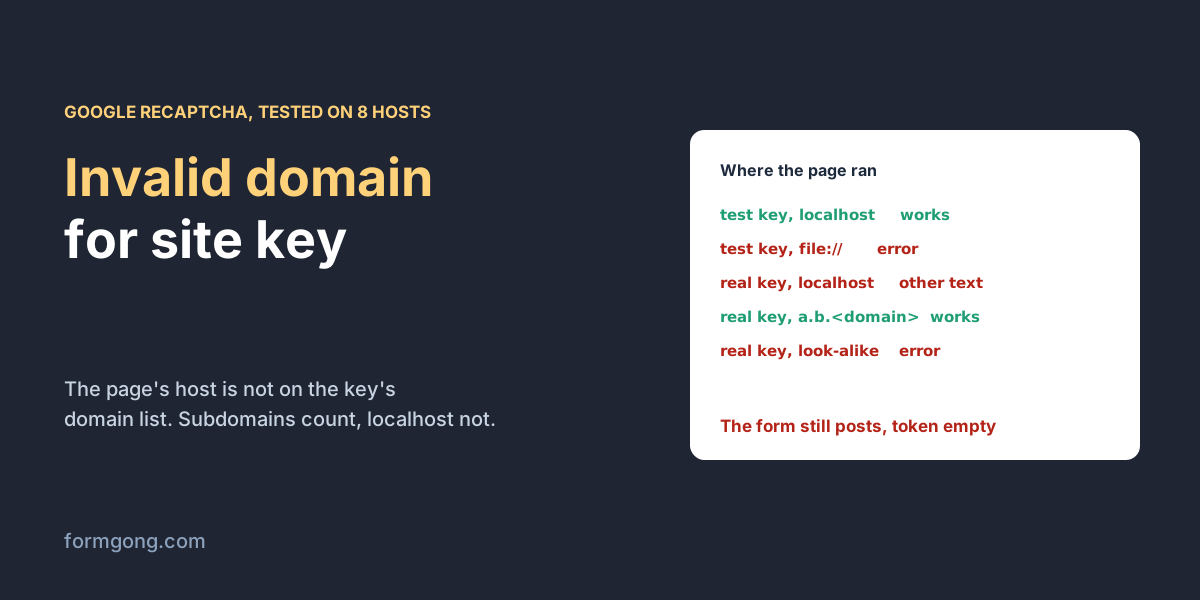
What does the error mean?
Every reCAPTCHA site key has a list of domains it may run on, set when the key was created. When the widget loads, Google compares the host name of your page with that list. If the host is not on it, Google draws the red line ERROR for site owner: Invalid domain for site key where the “I'm not a robot” box should be. The visitor cannot tick anything, because there is nothing to tick.
The words “for site owner” are a hint about who can fix it. If you saw this on someone else's site, nothing in your browser causes it, and only the owner of that site can change the key. Sending them the address of the page helps.
If the page is yours, the fix is almost always one of two things: add the host to the key's list, or use the key that was made for this host. First find out which host Google sees, because it can differ from the one you have in mind.
What did our test show?
On 13 November 2026 we loaded Google's real reCAPTCHA script on a test page and changed two things: the site key and the address the browser thought it was on. Besides Google's published test key, we used three real site keys copied from the HTML of other websites. Site keys are public by design, so any page's source shows them. To put the page on a key's own domain, we told the browser that this domain lived on our test machine, so Google saw the right name while every byte came from us. We never clicked a real key's checkbox.
| # | Site key | Page address | What the widget showed |
|---|---|---|---|
| 1 | Google's test key | http://localhost and http://127.0.0.1 | A checkbox under the line “This reCAPTCHA is for testing purposes only. Please report to the site admin if you are seeing this.” Ticking it gave a token |
| 2 | Google's test key | The same HTML opened from disk (file://) | ERROR for site owner: Invalid domain for site key |
| 3 | Checkbox key from another site | localhost and 127.0.0.1 | A normal checkbox, no error |
| 4 | Checkbox key from another site | file:// | ERROR for site owner: Invalid domain for site key |
| 5 | Invisible key from another site | localhost and 127.0.0.1 | “Localhost is not in the list of supported domains for this site key.” |
| 6 | Invisible key from another site | Its own domain, a made-up subdomain, and a.b. in front of the domain | No error |
| 7 | Invisible key from another site | Its domain with .example.net added at the end | ERROR for site owner: Invalid domain for site key |
| 8 | v3 key from another site | localhost and 127.0.0.1 | The badge said “Localhost is not in the list…”, and execute() still returned a token of 548 to 556 characters |
| 9 | v3 key from another site | Its domain with .example.net added | ERROR for site owner: Invalid domain for site key in the badge, and a token of 610 characters |
| 10 | v3 key from another site | Its own domain | No error, a token of 2,212 to 2,233 characters |
| 11 | v3 key in a v2 checkbox | localhost and the key's own domain | ERROR for site owner: Invalid key type |
| 12 | Checkbox key as an invisible widget | localhost | “This site key is not enabled for the invisible captcha.” |
| 13 | A key that does not exist | localhost | ERROR for site owner: Invalid site key |
Three rows surprised us. On localhost and 127.0.0.1 Google does not say “Invalid domain” at all; it says “Localhost is not in the list of supported domains for this site key.” Both addresses got that same sentence. Rows 2 and 4 show that a page opened straight from disk breaks even Google's test key, which otherwise works anywhere. And in row 3 a key from another site worked on our localhost, which means its owner has either added localhost or switched the domain check off. You cannot tell which from the outside.
With v3, a wrong host did not make grecaptcha.execute() fail. It handed back a token about a quarter the length of the ones it gave on the right domain. Only the key's owner can ask Google about such a token, so we could not see the verdict, but a token arriving in your code proves nothing about the key.
Chrome's console printed nothing about the domain in any of the cases. The error exists only as text inside Google's frame, and your own scripts cannot read that frame. You find out by looking at the page, or from your server when the token it checks is empty.
Which address is your page really on?
Open the page where the error shows, open the browser console and run the lines below. The first prints the host name Google compares with your list. The other two print the site keys the page loads, so you can check that the key on the page is the one you edited in Google's console. A theme or plugin can bring its own key, and a page copied from another project often keeps the old one.
Then compare the host with the domains on the key. Most often the site has moved to a new domain, or the page runs on a staging or preview address. Preview hosts from site builders and hosting services usually sit on the provider's own domain, so your main domain's entry does not cover them. Each one needs to be on the list, or needs its own key. Local addresses have their own rules, covered next.
// Paste into the browser console on the page with the form.
location.hostname; // the name reCAPTCHA compares with the key's domain list

// The site keys on the page: v2 widgets carry data-sitekey,
// v3 puts its key in the script address after render=
[...document.querySelectorAll("[data-sitekey]")].map((el) => el.dataset.sitekey);
[...document.scripts].map((s) => s.src).filter((src) => src.includes("recaptcha"));
Why did it work on your computer?
Two common setups pass locally and then fail on the live site, or the other way round. The first is Google's test key, 6LeIxAcTAAAAAJcZVRqyHh71UMIEGNQ_MXjiZKhI. Google's FAQ says that with it “all verification requests will pass”, and in our test it worked on localhost and 127.0.0.1, with a line on the widget saying it is for testing only. If you built the form with that key and swapped in the real one at deploy time, your local test never touched the domain list.
The second is a page opened by double-clicking the HTML file. The address then starts with file:// and has no host, and both the test key and a real key showed Invalid domain for site key. Serve the folder through any local web server and open it at http://localhost instead.
Real keys do not accept localhost unless you add it. Google's FAQ says “localhost domains are not supported by default”, and advises separate keys for development and production, with localhost only on the development key. Our test showed the localhost message on 127.0.0.1 as well. Google's pages only talk about localhost, so if you add it, open your page at that name. The sample below picks the key by host name. Your server then has to verify each token with the secret of the key that made it.
<form id="contact" method="POST" action="/contact">
  <label>Email <input type="email" name="email" required></label>
  <label>Message <textarea name="message" required></textarea></label>
  <div id="captcha"></div>
  <button type="submit">Send</button>
</form>
<script>
  // The live key lists your real domain. The development key lists localhost.
  // Your server must verify with the secret that belongs to the same key.
  const SITE_KEY = location.hostname === "localhost" ? "YOUR_DEV_SITE_KEY" : "YOUR_LIVE_SITE_KEY";
  function onRecaptchaLoad() {
    grecaptcha.render("captcha", { sitekey: SITE_KEY });
  }
</script>
<script src="https://www.google.com/recaptcha/api.js?onload=onRecaptchaLoad&render=explicit" async defer></script>
How do you add the domain to the key?
Sign in with the Google account that owns the key and open it in the reCAPTCHA admin console. Keys that have moved to Google Cloud live in the Google Cloud console under reCAPTCHA. Find the domain list and add the host from the console check above.
Type the host name only. Google's settings page says a valid domain “must not include any path, port, query or fragment”, so example.com is right and https://example.com/contact is not. You do not need www or other subdomains as separate entries, since the same page says a registration for example.com “also registers subdomain.example.com”. Our test agrees: a made-up subdomain two levels deep passed, while the domain with .example.net stuck on the end failed, as it should.
Then wait before you test again. Google says changes to the domain list “may take up to 30 minutes to take effect”, so a page that still shows the error two minutes later is not proof that you typed it wrong. The Google Cloud console allows up to 250 domains on one key.
The same console has a switch that turns the domain check off. It makes the error go away everywhere, and Google calls it a security risk, because then anyone can use your key on any site. If you turn it off, your server has to check the hostname that comes back with every verification and refuse the ones that are not yours. Adding the right domain is the smaller change.
Can visitors still send the form?
Yes, and that catches people out. In every broken checkbox case of our test, our own Send button still posted the form. The g-recaptcha-response field arrived empty, and grecaptcha.getResponse() returned an empty string. What happens next is up to your server.
If the server verifies the token with Google, every message fails, because there is no token to check. Visitors see whatever your form shows for a failed captcha, and you get no mail. If the server never verifies the token, the form goes through and the captcha on the page protects nothing, broken or not. Our reCAPTCHA v3 guide shows the server check, and the invisible reCAPTCHA guide covers the invisible widget.
Is it the key type instead?
Google uses the same red “ERROR for site owner” start for other mistakes, and the end of the line tells them apart. Invalid key type means the widget and the key are different kinds. We got it by putting a v3 key in a v2 checkbox, on localhost and on the key's own domain alike, so it is not about the domain. Google's troubleshooting page says to check that the key's type in the console, such as “Website • checkbox” for v2, matches the code on the page.
Invalid site key means Google does not know the key at all. A made-up key gave us that line; Google's FAQ also lists a key that is no longer valid. A v2 checkbox key used as an invisible widget gave a different sentence: “This site key is not enabled for the invisible captcha.” Going the other way, our invisible key drew an ordinary checkbox on its own domain with no error, so a widget that looks fine does not prove the key type is the one you meant.
Spam protection on a Formgong form
A Formgong form works without a captcha box. Our server looks for a filled-in honeypot field and scores each message for spam signs such as a pile of links. It also caps how many posts one network or one form can send per minute. None of that uses a site key, so nothing on the page can break when you move the form to a new domain. The form's settings do have an Allowed domains list, and while it is empty the form accepts posts from any page. If you keep a reCAPTCHA widget on a Formgong form anyway, Formgong does not check its token, so the box adds a domain list to look after and no protection on our side.
When you want a visible check, you can switch on Cloudflare Turnstile for the form. Turnstile keys have a host list of their own, and our Turnstile errors guide covers its domain error, 110200. For the route without a captcha, see honeypot form fields and spam protection without a captcha.
The form is one piece of a Formgong account. The same account runs a review widget and an AI help chat on your site, and you can start from one of our templates.
Seen a different message?
If reCAPTCHA shows you a line that is not in our table, or the error stays after the 30 minutes are up, write to us at support@formgong.com with the text and the page address. We will run it the same way and add a row.
Frequently asked questions
Why does reCAPTCHA say Invalid domain for site key?
The host name of the page is not on the site key's domain list. Add the host in Google's reCAPTCHA console, or use the key that was made for that domain. A page opened from disk (file://) shows the error even with Google's test key.
Does reCAPTCHA work on localhost?
Not with a real key, unless localhost is on its domain list. In our test such a key said “Localhost is not in the list of supported domains for this site key.” on localhost and on 127.0.0.1. Google advises a separate development key for this.
Do I need to add www and subdomains to the reCAPTCHA domain list?
No. Google's settings page says a domain also covers its subdomains, and in our test a made-up subdomain two levels deep passed. Enter the host only, without https://, a path or a port.
How long does a reCAPTCHA domain change take?
Google says changes to the domain list may take up to 30 minutes to take effect. Wait that long before deciding the entry is wrong.
What does ERROR for site owner: Invalid key type mean?
The key and the widget are different kinds, for example a v3 key in a v2 checkbox. We saw it on the key's own domain too, so adding domains does not fix it. Create or pick a key of the type your code uses.
Sources and documentation
Official references for this guide: Formgong: reCAPTCHA v3 setup with the server score check, Formgong: How to add invisible reCAPTCHA to a form. HTML forms, where data is stored.