Why doesn't maxlength work on a number input?
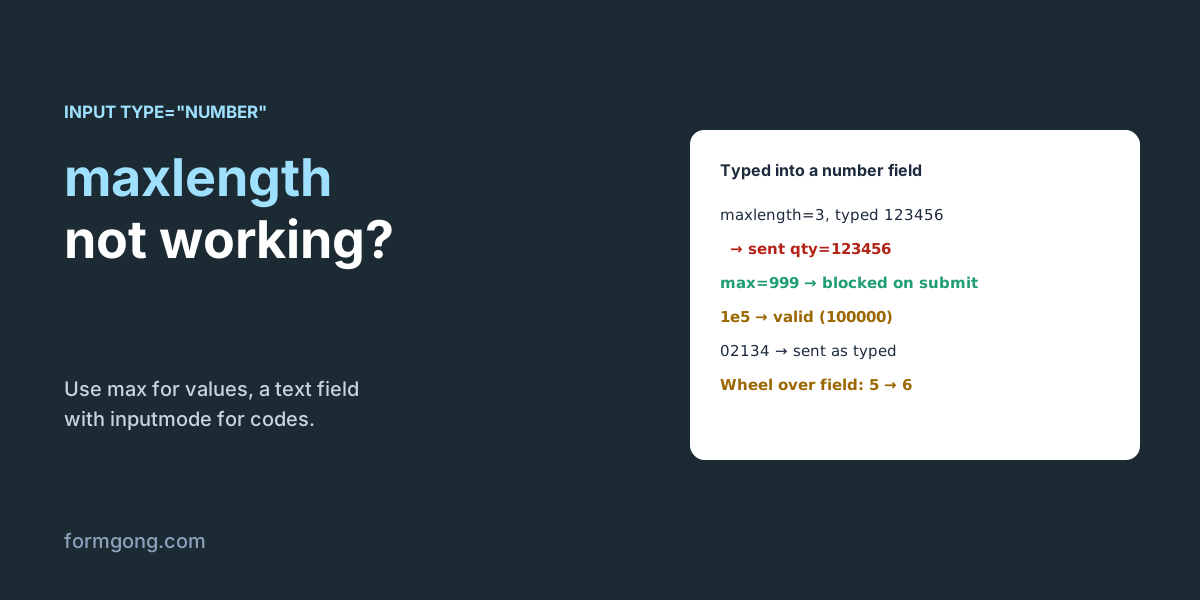
Because the HTML standard only applies maxlength to fields where the value is text: text, email, search, url, tel and password. For type="number" the browser ignores the attribute completely. On 6 November 2026 we set maxlength="3" on a number field in Chromium 153 and typed 123456. The field kept all six digits, the browser reported nothing wrong, and the form sent qty=123456. The field's validity.tooLong stayed false, and its maxLength property read -1, the same as a text field with no limit, not the 524288 some old tutorials mention.
A number field has its own limits instead: min, max and step. They limit the value, not the number of characters, and they act when the form is submitted, not while someone types. In JavaScript, a value over max shows up as validity.rangeOverflow being true. Here is what else we saw while typing into a plain number field:
| Typed | value | What happened |
|---|---|---|
123456, with maxlength="3" | 123456 | maxlength ignored; sent qty=123456 |
123456, with max="999" | 123456 | blocked on submit: “Value must be less than or equal to 999.” |
| 12abc | 12 | letters did not appear |
| 1e5 | 1e5 | valid, it means 100000 |
| e or -- | (empty) | “Please enter a number.” |
| 1.5 | 1.5 | blocked: “Please enter a valid value. The two nearest valid values are 1 and 2.” |
| 02134 (a ZIP code) | 02134 | sent as typed; as a number it is 2134 |
The 1e5 row catches people out: the letter e is allowed because it is part of how numbers are written in science, so a three-digit field can hold a number with six figures. And the ZIP code row shows why a number field is the wrong tool for codes. The value 02134 was sent as typed, but to the browser it is the number 2134, and arrows or a scroll would turn it into 2135.
How do you limit the digits of a number?
Decide what you are limiting.
A quantity, an age, a price. Keep type="number" and set min, max and step="1". max="999" covers “three digits”. In our test the browser blocked 123456 on submit with “Value must be less than or equal to 999.” If you also want typing to stop at three digits, a three-line script does it; in our test it cut 123456 to 123 as it was typed, and a pasted 1234567 to 123 as well. For prices, set step="0.01" (2.50 was accepted) or step="any" to allow any decimals.
Whatever you type, input.value is a string: "02134" for a ZIP code typed into a number field, while valueAsNumber gave 2134. Use valueAsNumber or Number() before you do arithmetic.
<label for="qty">Quantity (up to 3 digits)</label>
<input id="qty" name="qty" type="number" min="1" max="999" step="1" required>

<script>
  // Optional: stop typing after 3 digits. max="999" already blocks bigger numbers on submit.
  const qty = document.getElementById("qty");
  qty.addEventListener("input", () => {
    if (qty.value.length > 3) qty.value = qty.value.slice(0, 3);
  });
</script>
Use a text field for codes
A ZIP code, PIN, phone number, card or account number. These are strings of digits, not quantities: nobody adds them up, and the leading zero matters. Use type="text" with inputmode="numeric", which still opens the number keyboard on phones, plus maxlength and a pattern.
In our test this field stopped at five characters as we typed (1234567 became 12345) and refused 12a with “Please match the requested format.”. The value 02134 went out as zip=02134, and there are no arrows to change it by accident. For phone numbers, type="tel" is the type made for them.
A few details. If you use the looser pattern="[0-9]*", an empty field passes it, so add required when the code is mandatory; ours then blocked with “Please fill out this field.”. For a code sent by SMS, add autocomplete="one-time-code", the value the HTML standard defines for one-time codes, so phones can offer to fill it in. In React, filter in onChange with value.replace(/\D/g, "").slice(0, 5) so pasted spaces and dashes go too. And maxlength only limits typing: a script that set the field to 1234567 got a valid field, and the form sent zip=1234567.
Card and account numbers are the clearest case for a text field. We typed a 19-digit card number into a number field: the box showed it, but valueAsNumber was 4111111111111111000, because JavaScript numbers can't hold that many digits exactly. A typed plus sign also vanished: “+5” became 5.
<label for="zip">ZIP code</label>
<input id="zip" name="zip" type="text"
       inputmode="numeric" pattern="[0-9]{5}" maxlength="5"
       autocomplete="postal-code" required>
How do you remove the arrows from a number input?
With CSS. Chrome, Edge and Safari draw the up and down arrows as two pseudo-elements you can switch off; Firefox needs appearance: textfield. In our test the arrows disappeared and the computed appearance of the field changed from auto to textfield. In Tailwind, use arbitrary variants: [appearance:textfield] [&::-webkit-inner-spin-button]:appearance-none [&::-webkit-outer-spin-button]:appearance-none. To hide them on one field only, put the same rules on a class such as .no-spin instead of on every input[type="number"].
Only the look changes. With the arrows hidden, a value of 25 in a field with max="20" was still refused with “Value must be less than or equal to 20.”, and Chromium's accessibility tree still described the field as a spin button with a minimum of 1 and a maximum of 20, so screen readers announce the range.
Hiding the arrows doesn't stop the other ways the value can change. With the field focused, the ArrowUp key turned 5 into 6, and so did scrolling the mouse wheel over it. That last one surprises people who scroll a long form with the cursor resting on a field. If that matters, switch to the text field from the previous section, or call blur() on the field in a wheel listener; in our test that kept the value at 5. To keep the focus in the field, call preventDefault() in a wheel listener added with { passive: false } while the field is focused: the value stayed 5 and the cursor stayed put.
Mouse users lose the visible hint that the value can be stepped. For a quantity picker, add your own minus and plus buttons with labels such as aria-label="Decrease quantity" that call input.stepDown() and input.stepUp(). These respect the limits: at max="20", stepUp() left 20 alone, and at min="1", stepDown() left 1.
/* Chrome, Edge, Safari */
input[type="number"]::-webkit-outer-spin-button,
input[type="number"]::-webkit-inner-spin-button {
  -webkit-appearance: none;
  margin: 0;
}

/* Firefox */
input[type="number"] {
  -moz-appearance: textfield;
  appearance: textfield;
}
What about values set from JavaScript?
A script can set a number field's value past max: we set 50 on a field with max="10" and the browser kept it, then blocked the submission with “Value must be less than or equal to 10.”. Something that isn't a number is dropped instead. Setting "abc" left the field empty and logged The specified value "abc" cannot be parsed, or is out of range. to the console. If a prefilled number field shows up empty, look for that line.
What does the server get?
Text, always. Whatever the field type, the browser sends the characters as they were in the box: 02134, 1.5, 1e5. Check the range again on the server, because max only stops people who submit through the page.
If your form posts to Formgong, the number arrives in your email or Telegram notification exactly as typed, leading zeros included. You can add a field check under Settings, then Protection, then Field checks that marks the field as a number. That check accepts digits with an optional decimal part written with a point or a comma, so 12,5 passes, as many European visitors write it, and 1e5 does not. Our guide to HTML input types lists what every other type sends.
From the same account you can add an AI help chat that answers “which size do I need?” before someone fills in the quantity, and a reviews widget next to the form.
Did a number field surprise you?
If a number input behaved differently in your browser, or you found a case we did not test, tell us at support@formgong.com. We will check it and update this page.
Frequently asked questions
Why is maxlength not working on input type number?
Because browsers only apply maxlength to text-like fields, and a number field isn't one. Limit the value with max, or switch to a text field with inputmode="numeric" if you need a length limit.
How do I limit an input type number to 10 digits?
If it's a code, like a phone or account number, use a text field: type="text", inputmode="numeric", maxlength="10" and pattern="[0-9]{10}". If it's a quantity, max="9999999999" does it.
How do I remove the arrows from an input type number?
Hide ::-webkit-inner-spin-button and ::-webkit-outer-spin-button with -webkit-appearance: none, and set appearance: textfield for Firefox.
Why does input type number accept the letter e?
1e5 is 100000 in scientific notation, so the browser treats it as a number. Chromium accepted it in our test; check the value on the server too.
Sources and documentation
Official references for this guide: . HTML forms, where data is stored.